
How to set a timer on a Mac: Clock, Siri and more
How to set a timer on a Mac with the Clock app, Siri, Spotlight, Shortcuts, Reminders or Terminal, plus what to use on a Mac without the Clock app.
The quickest way to set a timer on a Mac is the Clock app. Open it with Spotlight (press Command-Space, type Clock, press Return), click Timers, choose a length and start it. You can also ask Siri to "set a timer for 10 minutes", which starts one in Clock for you.
Clock came to the Mac with macOS Ventura, so older versions of macOS need another route, and some jobs suit a different tool anyway: Shortcuts, Reminders or Terminal.
Set a timer with the Clock app
Clock lives in your Applications folder and has four sections: World Clock, Alarms, Stopwatch and Timers.
- Open Clock and click Timers.
- Set a length in hours, minutes and seconds. If a timer is already running, use the add button to make another.
- If you like, give it a label, such as "Tea" or "Break", and choose the sound it plays when the timer ends.
- Start it.
In recent versions, several timers can run at once, each with its own label, which helps when the pasta, the laundry and a call all need watching. Clock also keeps your recent timers, so a length you use every day is quick to start again.
When a timer ends, Clock plays the sound you chose and shows a notification. The usual way to miss one is sound: a muted Mac, or headphones you took off and left on the desk. If you rely on hearing it, check the volume before you start. If the notification itself never shows up, look at System Settings > Notifications > Clock, and at any Focus that is on.
From Spotlight
On any Mac with Clock, Spotlight is the fastest way to open it: Command-Space, type "clock", Return. In macOS Tahoe, Spotlight can also run actions from apps without opening them, so typing "timer" may offer to start one right there in the search bar. On earlier versions, Spotlight only opens the app.
Can you ask Siri to set a timer on a Mac?
Yes, on versions of macOS that have the Clock app. Turn Siri on first in System Settings, where it is listed as Siri & Spotlight, Siri, or Apple Intelligence & Siri, depending on your Mac and version. Then ask:
- "Set a timer for 20 minutes."
- "Set a pasta timer for 9 minutes." A name helps when you run more than one.
The timer appears in Clock like any other, so you can pause or cancel it there. If you would rather type than talk, look for Type to Siri, which sits in System Settings > Accessibility > Siri in many versions and alongside the other Siri settings in some.
On a Mac without the Clock app, Siri may tell you it can't set timers. Ask for a reminder instead: "remind me in 20 minutes to check the oven" does much the same job, as the section on older Macs below explains.
Make a one-click timer with Shortcuts
If you use the same length every day, such as a 25 minute work block, a shortcut saves you setting it each time. Open Shortcuts, create a new shortcut, and build it one of two ways.
- With a timer action. Search the actions list for "timer". If a Start Timer action from Clock appears on your Mac, add it and set the length.
- With Wait and a notification. Add a Wait action set in seconds (1,500 for 25 minutes), then a Show Notification action with a message such as "Time for a break". This works even where no timer action shows up, as long as the shortcut is left to finish. Try a long wait once before you rely on it.
To make it one click away, open the shortcut's details and choose Pin in Menu Bar, or give it a keyboard shortcut. If you want the same shortcut to ask for a length each time, start it with an Ask for Input action for a number, then a Calculate action that multiplies the answer by 60, and feed that into the Wait.
How do you set a timer on an older Mac?
With Reminders
A reminder with a time does the job of a timer. Create one, set today's date and a time 20 minutes from now, and it alerts you at that minute. It only works in whole minutes, but if Reminders syncs through iCloud, the alert follows you to your iPhone when you leave the desk. Siri can make one in a sentence: "remind me in 45 minutes to move the laundry."
A Calendar event with an alert at the time of the event works the same way, and is easier to see coming because it sits on your calendar.
With Terminal
Terminal can count down with the sleep command, which waits a number of seconds, then run something when it finishes. Open Terminal from Applications > Utilities and type one of these:
sleep 600; say "Time is up"waits 10 minutes, then your Mac speaks the words.sleep 1500; osascript -e 'display alert "Time for a break"'waits 25 minutes, then shows an alert you click to dismiss.caffeinate -i sleep 1500; say "Done"waits 25 minutes while stopping the Mac from going to sleep on its own in the meantime.
Keep the Terminal window open until it finishes. Press Control-C to cancel. If the Mac does go to sleep part way through, the countdown can finish late, which is what the caffeinate version is for.
Which timer should you use?
| You want | Use |
|---|---|
| A quick countdown for cooking or a call | Clock, or ask Siri |
| Several named timers at once | Clock |
| The same length every day, one click away | A shortcut pinned in the menu bar |
| A timer that follows you to your iPhone | A reminder with a time |
| A timer on a Mac without the Clock app | Reminders, Calendar or Terminal |
| Something quick while you are in Terminal anyway | sleep with say |
Whichever you pick, give it a label. "Break" or "Call with Sam" tells you at a glance what the alert is for, where an unnamed timer just makes you wonder what you set it for.
Timers for focus blocks and meetings
Two of the most common reasons to set a timer at a desk are a block of focused work and a warning before a meeting. Notchpals covers both from the notch, and the only thing you ever choose is a session length. If your crew includes a Focus character (Bolt, Debug or Jot), the Notchpals menu in the menu bar, marked by a pair of eyes, offers Start a focus session, at 25 or 50 minutes. While the session runs, the rest of the crew holds back, apart from a meeting about to start or a nearly flat battery if you have characters for those, and when the time is up the Focus character comes back to tell you.

JotDone! Time to tick it off. That's my favorite feeling!
Meetings need no countdown at all. Ticky, an alarm clock with very loud nerves, is one of the Schedule characters. With calendar access allowed, Ticky slides out of the notch a few minutes before each meeting on your calendar, so you never have to work out when to set a timer for it.
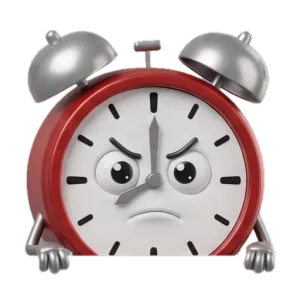
TickyIt starts in minutes! Minutes! I'm counting every one! Go go go!
It is not a general timer, though. You can't set a 9 minute pasta timer or a custom session length in it, and it doesn't time your breaks. For those, Clock is still the right tool. The Pomodoro technique on a Mac shows how the two fit together for timed work blocks with proper breaks between them.
More on meetings and the workday
 Meetings and the workdayHow to stop being late to meetings, even back-to-back onesTo stop being late to meetings, set a reminder 5 to 10 minutes before, end each call a few minutes early and use the gap to get ready. Here is how.
 Meetings and the workdayHow to structure your workday, with two sample day plansHow to structure your workday: deep work in your best hours, meetings grouped together, breaks at set points, lunch away from the desk and a hard stop.
 Meetings and the workdayMeeting reminder message templates: emails and texts to copyMeeting reminder message templates for a day before, an hour before and 10 minutes before, plus a nudge for a late attendee and a reschedule. Copy and edit.